
python_demo.md 8.5 KB
Demo App in python
- test.py is a demo application to test control path interface
- App is available under directory python_support/
- App interacts with
Hosted Control Libraryby doing python to C translation - This app is developed using Google's Python Fire, Prompt toolkit libraries and ctypes library
Python to C translation
- commands_map_py_to_c.py uses
ctypeslibrary to translate python into ctrl_api.h APIs - This way, both python and C codes are unified and both use the same control path APIs.
- Using this unification, python app becomes more maintainable and extensible
Source files
- This demo app works over Hosted Control Library
- Config file hosted_py_header.py contains enum and basic structures, need not be modified
- test.py is the main demo app file. This works in shell mode or CLI mode.
- py_parse/cmds.py is used with prompt toolkit library to add new command in auto complete
- py_parse/process.py is wrapper to command handling functions in
commands_lib.py - commands_lib.py is a supporting file for Demo APP, where methods are implemented. User can adapt as per their need.
- commands_map_py_to_c.py is mapper file for
ctypeslibrary Installation
Install the dependency libraries,
prompt_toolkit,docstring_parser,fireandrequests. Below command could be used to install:$ sudo python3 -m pip install prompt_toolkit fire argparse docstring_parser requestsOn Raspberry Pi or other linux distributions, you may see this error when running that command:
error: externally-managed-environmentIf you get that error, you can try this alternative method, which is to setup a python virtual environment (venv) to install the packages:
$ python -m venv my-venv
$ my-venv/bin/pip install prompt_toolkit fire argparse docstring_parser requests
To run the demo app in a venv (see below section):
$ sudo my-venv/bin/python ./test.py
Modes supported
- Demo apps use
sudopermission as interface up and down are executed as network IOCTL for command likeconnect_ap,start_softap - There are two modes supported in demo application,
Shell modeandCLI mode - Gif shows the use of both modes
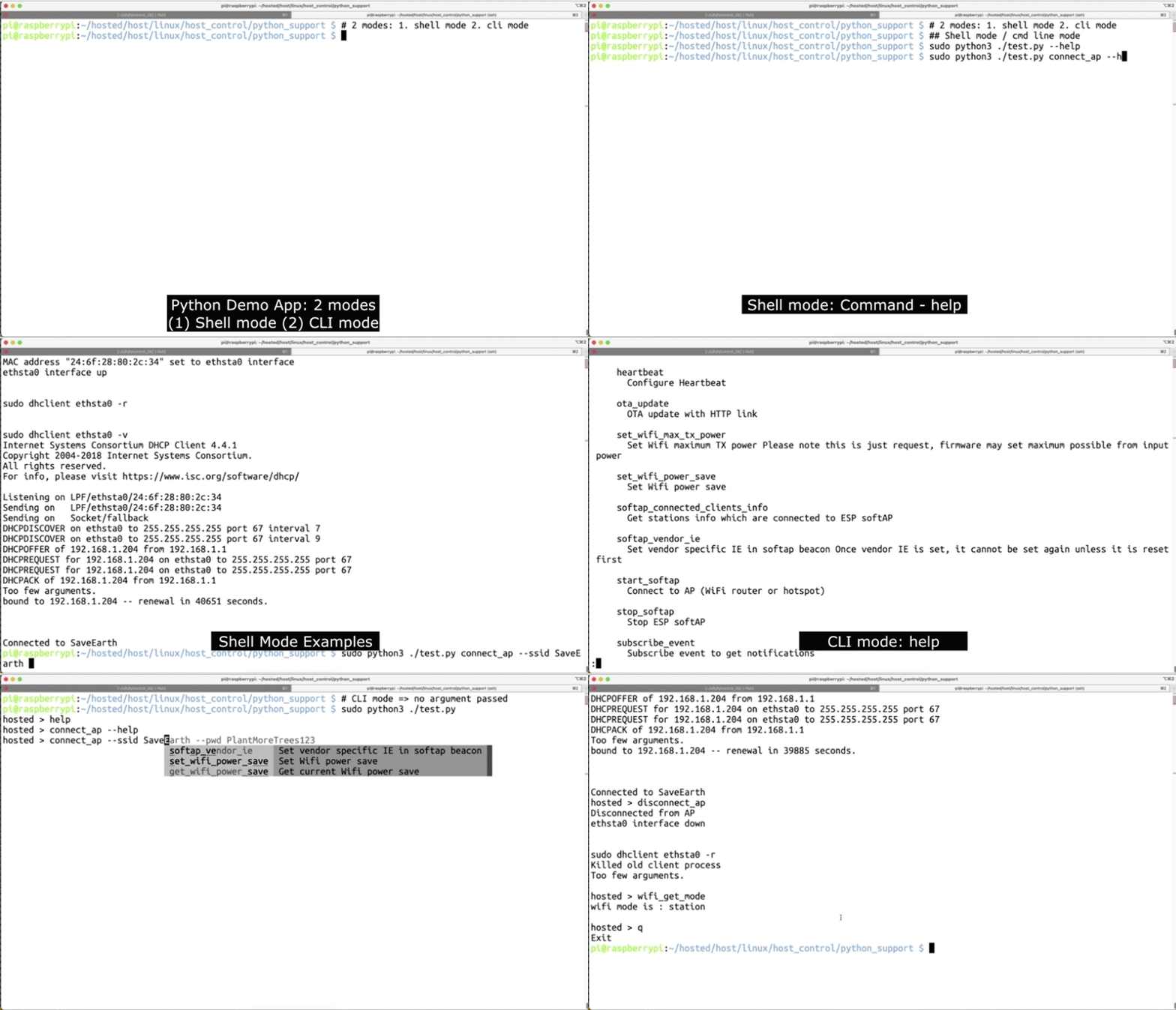
CLI mode
- User when pass no arguments to
test.py, the app runs in CLI mode - In CLI mode, command input from the user is taken, and then the input string is mapped to control request and injected into
Hosted Control Lib - CLI mode generally uses synchronous procedure as user intends to wait for the response
Help
- when string 'help' or '--help' is run, all available commands and their use are popped.
For example,
$ make clean; make
$ sudo python3 ./test.py

hosted > help
command specific help is also available which describes supported mandatory and optional options
For example,
hosted > connect_ap --help    OR
hosted > connect_ap help
Exit from CLI mode
- commands
exit,quitandqwill exit the demo app
- commands
Shell mode
- Shell mode could be used to just run one command to completion and exit
- In command line shell, when command with options are passed, it will treat as shell mode
Help for available commands
$ make clean; make
$ sudo python3 ./test.py --help
Command specific help is also available
$ sudo python3 ./test.py start_softap --help
Example of command execution:
$ sudo python3 ./test.py connect_ap --ssid SaveEarth --pwd PlantMoreTrees123
Supported commands
- Commands are picked from functions in file, py_parse/cmds.py
- These commands will internally map to control request and send it to
Hosted Control Library - These commands finally mapped to one of Hosted control path API. Please find all acceptable input values and possible outputs from API documentation.
List of commands
wifi_get_mode- Get current Wi-Fi mode
wifi_set_mode- Set Wi-Fi mode
wifi_get_mac- Get Mac address of Wi-Fi mode passed
wifi_set_mac- Set Mac address of Wi-Fi mode passed
get_available_ap- Scan and list neighbouring APs (Wi-Fi routers or Hotspot)
connect_ap- Connect ESP station to external AP(Wi-Fi router or hotspot), assign MAC address of ESP station to
ethsta0and upethsta0interface get_connected_ap_info- Get details of connected AP in station mode
disconnect_ap- Disconnect ESP station from external AP and down
ethsta0interface softap_vendor_ie- Enable or disable softap vendor specific IE
start_softap- Start ESP softAP, assign MAC address of ESP softAP to
ethap0and upethap0interface get_softap_info- Get softAP configuration
softap_connected_clients_info- Get stations info which are connected to ESP softAP
stop_softap- Stop ESP softAP
set_wifi_power_save- Set Wi-Fi power save
get_wifi_power_save- Get current Wi-Fi power save mode
set_wifi_max_tx_power- Request firmware to set maximum possible from input power. Actual power set may slightly vary depending upon external factors at Wi-Fi driver.
get_wifi_curr_tx_power- Get current Wi-Fi TX power
ota_update- Over The Air (OTA) update from HTTP server using passed URL of ESP firmware binary
heartbeat- Disable or Enable heartbeat with expected duration
subscribe_event- Subscribe event to get notifications
unsubscribe_event- Unsubscribe event to get notifications
disable_wifi- Deinit Wi-Fi driver in slave
enable_wifi- Init and start Wi-Fi driver in slave
disable_bt- Deinit Bluetooth driver in slave
enable_bt- Init and start Bluetooth driver in slave
get_fw_version- Fetch firmware version at slave
Note:
- Positional arguments are supported in case of
Shell mode - In both,
CLI modeandShell mode, a single command is supported at a time.
- Positional arguments are supported in case of
Stress Application
- stress.py use for stress testing of control path APIs
- User may change config from top of file
- Stress test repeats every type of command sequence for
STRESS_TEST_COUNTiterations
How to run
$ make clean; make
$ sudo python3 stress.py
OTA update
As explained above, OTA is run as
$ cd esp_hosted_fg/host/linux/host_control/python_support/
$ sudo python3 ota_update <URL of ESP firmware binary>
This script assumes the station is connected to an AP, an IP is assigned to
ethsta0and HTTP URL is accessible.It downloads a chunk of OTA image data using HTTP client over
ethsta0interface and writes on ESP flashOnce all chunks are successfully written, it restarts ESP after 5 sec.
Suggestion of steps for OTA with python
- Start a HTTP server on a remote machine which contains OTA image.
The following python command can be used to start the HTTP server if it's not running already.
$ python3 -m http.server <port_number>Example:
python3 -m http.server 9999Pass OTA image URL as command line argument to ota_update.py.
$ sudo python3 test.py ota_update "http://<IP_address>:<port_number>/ota_image.bin"Example:
$ sudo python3 test.py ota_update "http://192.168.0.106:9999/network_adapter.bin"It will perform the following operations.
Erase OTA flash partition of ESP
Download chunk from URL and write that chunk into flash, one by one, till whole binary is written
Validate the complete written binary in flash
Sets newly written OTA partition as boot partition
Reboot the ESP after 5 second