
 Chen Yu Dong
01ec3382f7
Merge branch 'ci/ota_example_bluedroid_gatts_timeout' into 'master'
Chen Yu Dong
01ec3382f7
Merge branch 'ci/ota_example_bluedroid_gatts_timeout' into 'master'
|
3 năm trước cách đây | |
|---|---|---|
| .. | ||
| advanced_https_ota | 3 năm trước cách đây | |
| native_ota_example | 3 năm trước cách đây | |
| otatool | 3 năm trước cách đây | |
| pre_encrypted_ota | 3 năm trước cách đây | |
| simple_ota_example | 3 năm trước cách đây | |
| README.md | 3 năm trước cách đây | |
| ota_workflow.png | 7 năm trước cách đây | |

README.md
OTA Example
NOTES
- This guide applies to all OTA update examples
- "ESP-Dev-Board" refers to any Espressif chipset development board (e.g., ESP32/ESP32-S2/ESP32-C3 etc.) ---
Overview
An application on "ESP-Dev-Board" may be upgraded at runtime by downloading a new image via Wi-Fi or Ethernet and flashing it to an OTA partition. The ESP-IDF offers two methods to perform Over The Air (OTA) upgrades:
- Using the native APIs provided by the
app_updatecomponent. - Using simplified APIs provided by the
esp_https_otacomponent, which provides functionality to upgrade over HTTPS.
Use of the native API is demonstrated in the native_ota_example directory while the API provided by the esp_https_ota component is demonstrated under simple_ota_example and advanced_https_ota.
For information regarding the esp_https_ota component, please refer to ESP HTTPS OTA.
For simplicity, the OTA examples use a pre-defined partition table created by enabling the CONFIG_PARTITION_TABLE_TWO_OTA option in menuconfig, which supports three app partitions: factory, OTA_0 and OTA_1. Please refer to Partition Tables for more information.
On first boot, the bootloader will load the image contained on the factory partition (i.e. the example image). This firmware triggers an OTA upgrade. It will download a new image from an HTTPS server and save it into the OTA_0 partition. Next, it updates the ota_data partition to indicate which app should boot after the next reset. Upon reset, the bootloader reads the contents of the ota_data partition to determine which application is selected to run.
The OTA workflow is illustrated in the following diagram:

How to use the examples
Hardware Required
"ESP-Dev-Board" is necessary to run the OTA examples. Make sure Ethernet is configured correctly if testing OTA with Ethernet. For further information about setting up Ethernet, please refer to the Ethernet examples.
Configure the project
Open the project configuration menu (idf.py menuconfig).
In the Example Connection Configuration menu:
- Choose the network interface in the
Connect usingoption based on your board. Currently both Wi-Fi and Ethernet are supported - If the Wi-Fi interface is used, provide the Wi-Fi SSID and password of the AP you wish to connect to
- If using the Ethernet interface, set the PHY model under
Ethernet PHY Deviceoption, e.g.IP101
In the Example Configuration menu:
- Set the URL of the firmware to download in the
Firmware Upgrade URLoption. The format should behttps://<host-ip-address>:<host-port>/<firmware-image-filename>, e.g.https://192.168.2.106:8070/hello_world.bin- Note: The server part of this URL (e.g.
192.168.2.106) must match the CN field used when generating the certificate and key
- Note: The server part of this URL (e.g.
Build and Flash
Run idf.py -p PORT flash monitor to build and flash the project. This command checks if the partition table contains the ota_data partition and restores it to an initial state. This allows the newly loaded app to run from the factory partition.
(To exit the serial monitor, type Ctrl-].)
See the Getting Started Guide for all steps required to configure and use the ESP-IDF to build projects.
Example Output
Run HTTPS Server
After a successful build, we need to create a self-signed certificate and run a simple HTTPS server as follows:
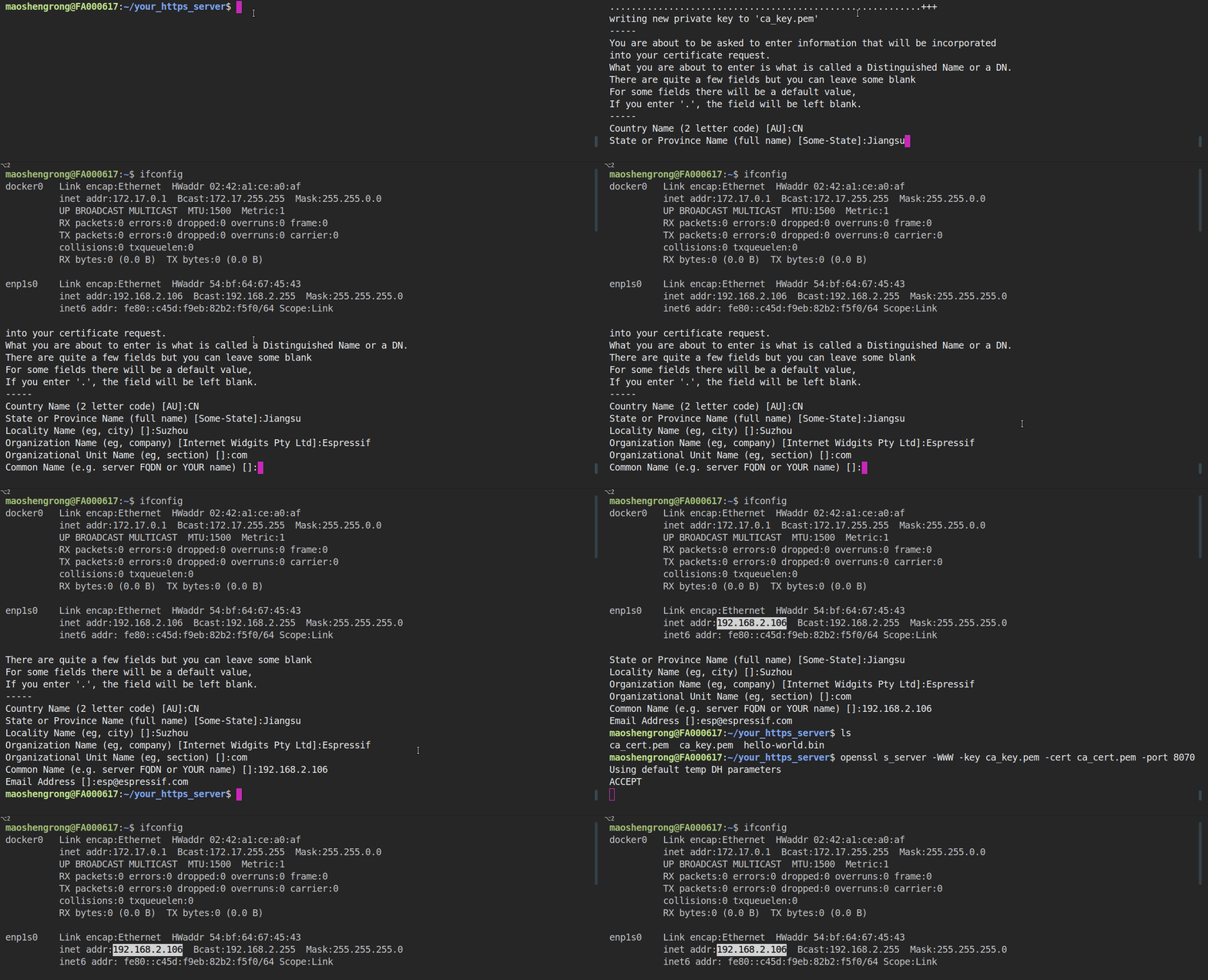
- Enter the directory containing build artifact/s of project, that will be hosted by HTTPS server, e.g.
cd build. - To create a new self-signed certificate and key, run the command
openssl req -x509 -newkey rsa:2048 -keyout ca_key.pem -out ca_cert.pem -days 365 -nodes.- When prompted for the
Common Name (CN), enter the name of the server that the "ESP-Dev-Board" will connect to. When running this example from a development machine, this is probably the IP address. The HTTPS client will check that theCNmatches the address given in the HTTPS URL.
- When prompted for the
- To start the HTTPS server, run the command
openssl s_server -WWW -key ca_key.pem -cert ca_cert.pem -port 8070. - This directory should contain the firmware (e.g.
hello_world.bin) to be used in the update process. This can be any valid ESP-IDF application, as long as its filename corresponds to the name configured usingFirmware Upgrade URLin menuconfig. The only difference to flashing a firmware via the serial interface is that the binary is flashed to thefactorypartition, while OTA update use one of the OTA partitions. - Note: Make sure incoming access to port 8070 is not prevented by firewall rules.
- Note: Windows users may encounter issues while running
openssl s_server -WWW, due to CR/LF translation and/or closing the connection prematurely (Some windows builds of openssl translate CR/LF sequences to LF in the served files, leading to corrupted images received by the OTA client; others interpret the0x1a/SUBcharacter in a binary as an escape sequence, i.e. end of file, and close the connection prematurely thus preventing the OTA client from receiving a complete image).- We recommend using the
opensslbinary bundled inGit For Windowsfrom the ESP-IDF Tool installer: Open the ESP-IDF command prompt and add the internal openssl binary to your path:set PATH=%LocalAppData%\Git\usr\bin;%PATH%and run openssl's http server command as above. - Alternatively, use any windows based openssl with version
v1.1.1ior greater built on theMsys-x86_64platform, or a simple python https server -- seestart_https_serverin the example_test script.
- We recommend using the
Flash Certificate to "ESP-Dev-Board"
Finally, copy the generated certificate to the server_certs directory contained in the example directory so it can be flashed onto your device along with the firmware, e.g. cp ca_cert.pem ../server_certs/.
cp ca_cert.pem /path/to/ota/example/server_certs/
Internal workflow of the OTA Example
After booting, the firmware:
- prints "OTA example app_main start" to the console
- Connects via Ethernet or to the AP using the provided SSID and password (Wi-Fi case)
- prints "Starting OTA example task" to the console
- Connects to the HTTPS server and downloads the new image
- Writes the image to flash, and instructs the bootloader to boot from this image after the next reset
- Reboots
If you want to rollback to the factory app after the upgrade (or to the first OTA partition in case the factory partition does not exist), run the command idf.py erase_otadata. This restores the ota_data partition to its initial state.
Note: This assumes that the partition table of this project is the one present on the device.
Output from the HTTPS server
FILE:hello_world.bin
ACCEPT
Supporting Rollback
This feature allows you to roll back to a previous firmware if new image is not useable. The menuconfig option CONFIG_BOOTLOADER_APP_ROLLBACK_ENABLE allows you to track the first boot of the application (see the Over The Air Updates (OTA) article).
The native_ota_example contains code to demonstrate how a rollback works. To use it, enable the CONFIG_BOOTLOADER_APP_ROLLBACK_ENABLE option in the Example Configuration submenu of menuconfig to set Number of the GPIO input for diagnostic to manipulate the rollback process.
To trigger a rollback, this GPIO must be pulled low while the message Diagnostics (5 sec)... is displayed during the first boot.
If GPIO is not pulled low, the app is confirmed as operable.
Support for Versioning of Applications
The native_ota_example contains code to demonstrate how to check the version of the application and prevent infinite firmware update loops. Only newer applications are downloaded. Version checking is performed after the first firmware image package containing version data is received. The application version is obtained from one of three places:
- If the
CONFIG_APP_PROJECT_VER_FROM_CONFIGoption is set, the value ofCONFIG_APP_PROJECT_VERis used - Else, if the
PROJECT_VERvariable is set in the projectCMakeLists.txtfile, this value is used - Else, if the file
$PROJECT_PATH/version.txtexists, its contents are used asPROJECT_VER - Else, if the project is located in a Git repository, the output of
git describeis used - Otherwise,
PROJECT_VERwill be "1"
In native_ota_example, $PROJECT_PATH/version.txt is used to define the app version. Change the version in the file to compile the new firmware.
Troubleshooting
- Check that your PC can ping the "ESP-Dev-Board" using its IP, and that the IP, AP and other configuration settings are correctly configured in menuconfig
- Check if any firewall software is preventing incoming connections on the PC
- Check whether you can see the configured file (default
hello_world.bin), by running the commandcurl -v https://<host-ip-address>:<host-port>/<firmware-image-filename> - Try viewing the file listing from a separate host or phone
Error "ota_begin error err=0x104"
If you see this error, check that the configured (and actual) flash size is large enough for the partitions in the partition table. The default "two OTA slots" partition table requires at least 4MB flash size. To use OTA with smaller flash sizes, create a custom partition table CSV (for details see Partition Tables) and configure it in menuconfig.
Make sure to run "idf.py erase-flash" after making changes to the partition table.
Local HTTPS Server
Running a local https server might be tricky in some cases (due to self signed certificates, or potential issues with openssl s_server on Windows). Here are some suggestions for alternatives:
- Run a plain HTTP server to test the connection. (Note that using a plain http is not secure and should only be used for testing)
- Execute
python -m http.server 8070in the directory with the firmware image - Use http://:8070/ as the firmware upgrade URL
- Enable Allow HTTP for OTA (
CONFIG_ESP_HTTPS_OTA_ALLOW_HTTP) inComponent config -> ESP HTTPS OTAso the URI without TLS is accepted
- Execute
Start the HTTPS server using example_test with two or more parameters:
pytest_simple_ota.py <BIN_DIR> <PORT> [CERT_DIR], where:<BIN_DIR>is a directory containing the image and by default also the certificate and key files:ca_cert.pemandca_key.pem<PORT>is the server's port, here8070[CERT_DIR]is an optional argument pointing to a specific directory with the certificate and key file.example of the script output:
$ cd idf/examples/system/ota/simple_ota_example
$ python example_test.py build 8070
Starting HTTPS server at "https://:8070"
192.168.10.106 - - [02/Mar/2021 14:32:26] "GET /simple_ota.bin HTTP/1.1" 200 -
Publish the firmware image on a public server (e.g. github.com) and copy its root certificate to the
server_certsdirectory asca_cert.pem. The certificate can be downloaded using thes_clientopenssl command as shown below:echo "" | openssl s_client -showcerts -connect raw.githubusercontent.com:443 | sed -n "1,/Root/d; /BEGIN/,/END/p" | openssl x509 -outform PEM >ca_cert.pem
Please note that URL used here is raw.githubusercontent.com. This URL allows raw access to files hosted on github.com repository. Additionally, command above copies last certificate from chain of certs as the CA root cert of server.
Using HTTPS Server in Production
Please refer to ESP-TLS: TLS Server Verification for more information on server verification. The root certificate (in PEM format) needs to be provided to the cert_pem member of the esp_http_client_config_t configuration.
Note that the server-endpoint root certificate should be used for verification instead of any intermediate ones from the certificate chain. The reason being that the root certificate has the maximum validity and usually remains the same for a long period of time.
Users can also use the ESP x509 Certificate Bundle feature for verification, which covers most of the trusted root certificates (using the crt_bundle_attach member of the esp_http_client_config_t configuration). There is no need to add any additional certificates. Please refer to the simple_ota_example for its usage.