
 Alex Tsitsiura
ccc27ed033
[Telink] RAM/ROM optimization & Update Telink image to 12 (#29373)
Alex Tsitsiura
ccc27ed033
[Telink] RAM/ROM optimization & Update Telink image to 12 (#29373)
|
2 år sedan | |
|---|---|---|
| .. | ||
| include | 2 år sedan | |
| src | 2 år sedan | |
| third_party | 2 år sedan | |
| .gitignore | 2 år sedan | |
| CMakeLists.txt | 2 år sedan | |
| Kconfig | 2 år sedan | |
| README.md | 2 år sedan | |
| prj.conf | 2 år sedan | |
| rpc.overlay | 2 år sedan | |
README.md
Matter Telink Window Example Application
The Telink Window Example demonstrates how to remotely control a window shutter device. It uses buttons to test changing cover position and device states and LEDs to show the state of these changes. You can use this example as a reference for creating your own application.
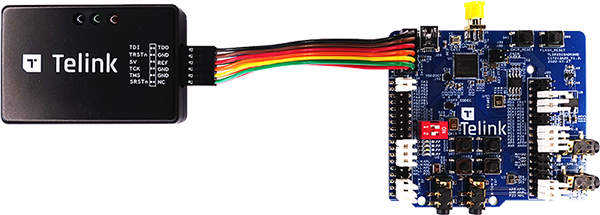
Build and flash
Run the Docker container:
$ docker run -it --rm -v $PWD:/host -w /host ghcr.io/project-chip/chip-build-telink:$(wget -q -O - https://raw.githubusercontent.com/project-chip/connectedhomeip/master/.github/workflows/examples-telink.yaml 2> /dev/null | grep chip-build-telink | awk -F: '{print $NF}')Compatible docker image version can be found in next file:
$ .github/workflows/examples-telink.yamlActivate the build environment:
$ source ./scripts/activate.shIn the example dir run (replace __ with your board name, for example,
tlsr9518adk80dortlsr9528a):$ west build -b <build_target>Flash binary:
$ west flash --eraseBuild chip-tool cli
Pair with device
${CHIP_TOOL_DIR}/chip-tool pairing ble-thread ${NODE_ID} hex:${DATASET} ${PIN_CODE} ${DISCRIMINATOR}Example:
./chip-tool pairing ble-thread 1234 hex:0e080000000000010000000300000f35060004001fffe0020811111111222222220708fd61f77bd3df233e051000112233445566778899aabbccddeeff030e4f70656e54687265616444656d6f010212340410445f2b5ca6f2a93a55ce570a70efeecb0c0402a0fff8 20202021 3840Switch on the light:
${CHIP_TOOL_DIR}/chip-tool onoff on 1here:
- onoff is name of cluster
- on command to the cluster
- 1 ID of endpoint
Switch off the light:
${CHIP_TOOL_DIR}/chip-tool onoff off 1here:
- onoff is name of cluster
- off command to the cluster
- 1 ID of endpoint
Read the light state:
${CHIP_TOOL_DIR}/chip-tool onoff read on-off 1here:
- onoff is name of cluster
- read command to the cluster
- on-off attribute to read
- 1 ID of endpoint
Change brightness of light:
${CHIP_TOOL_DIR}/chip-tool levelcontrol move-to-level 32 0 0 0 1here:
- levelcontrol is name of cluster
- move-to-level command to the cluster
- 32 brightness value
- 0 transition time
- 0 option mask
- 0 option override
- 1 ID of endpoint
Read brightness level:
./chip-tool levelcontrol read current-level 1here:
- levelcontrol is name of cluster
- read command to the cluster
- current-level attribute to read
- 1 ID of endpoint
- set CONFIG_CHIP_OTA_REQUESTOR=y in corresponding "prj.conf" configuration file.
- zephyr.bin - main binary to flash PCB (Use 2MB PCB).
- zephyr-ota.bin - binary for OTA Provider
Build the Linux OTA Provider
./scripts/examples/gn_build_example.sh examples/ota-provider-app/linux out/ota-provider-app chip_config_network_layer_ble=falseRun the Linux OTA Provider with OTA image.
./chip-ota-provider-app -f zephyr-ota.binProvision the Linux OTA Provider using chip-tool
./chip-tool pairing onnetwork ${OTA_PROVIDER_NODE_ID} 20202021here:
- \${OTA_PROVIDER_NODE_ID} is the node id of Linux OTA Provider
Configure the ACL of the ota-provider-app to allow access
./chip-tool accesscontrol write acl '[{"fabricIndex": 1, "privilege": 5, "authMode": 2, "subjects": [112233], "targets": null}, {"fabricIndex": 1, "privilege": 3, "authMode": 2, "subjects": null, "targets": null}]' ${OTA_PROVIDER_NODE_ID} 0here:
- \${OTA_PROVIDER_NODE_ID} is the node id of Linux OTA Provider
Use the chip-tool to announce the ota-provider-app to start the OTA process
./chip-tool otasoftwareupdaterequestor announce-otaprovider ${OTA_PROVIDER_NODE_ID} 0 0 0 ${DEVICE_NODE_ID} 0here:
- \${OTA_PROVIDER_NODE_ID} is the node id of Linux OTA Provider
- \${DEVICE_NODE_ID} is the node id of paired device
Usage
UART
To get output from device, connect UART to following pins:
| Name | Pin |
|---|---|
| RX | PB3 (pin 17 of J34 connector) |
| TX | PB2 (pin 16 of J34 connector) |
| GND | GND |
Buttons
The following buttons are available on tlsr9518adk80d board:
| Name | Function | Description |
|---|---|---|
| Button 1 | Factory reset | Triple press performs factory reset to forget currently commissioned Thread network and back to uncommissioned state |
| Button 2 | Open and Toggle Move Type control | Manually triggers the Open state by one press and double press triggers the Lift-Tilt move type |
| Button 3 | Open commission window | The button is opening commissioning window to perform commissioning over BLE |
| Button 4 | Close control | Manually triggers the Close state by one press |
LEDs
Indicate open-close position of Window Cover
Blue LED indicates current Lift position (PWM in range of 0-254). To indicate the Tilt state in the same way connect external LED to pin PE0.
Indicate current state of Thread network
Red LED indicates current state of Thread network. It is able to be in following states:
| State | Description |
|---|---|
| Blinks with short pulses | Device is not commissioned to Thread, Thread is disabled |
| Blinks with frequent pulses | Device is commissioned, Thread enabled. Device trying to JOIN thread network |
| Blinks with wide pulses | Device commissioned and joined to thread network as CHILD |
Indicate identify of device
Green LED used to identify the device. The LED starts blinking when the Identify command of the Identify cluster is received. The command's argument can be used to specify the the effect. It is able to be in following effects:
| Effect | Description |
|---|---|
| Blinks (200 ms on/200 ms off) | Blink (Clusters::Identify::EffectIdentifierEnum::kBlink) |
| Breathe (during 1000 ms) | Breathe (Clusters::Identify::EffectIdentifierEnum::kBreathe) |
| Blinks (50 ms on/950 ms off) | Okay (Clusters::Identify::EffectIdentifierEnum::kOkay) |
| Blinks (1000 ms on/1000 ms off) | Channel Change ( Clusters::Identify::EffectIdentifierEnum::kChannelChange) |
| Blinks (950 ms on/50 ms off) | Finish ( Clusters::Identify::EffectIdentifierEnum::kFinishEffect) |
| LED off | Stop (Clusters::Identify::EffectIdentifierEnum::kStopEffect) |
CHIP tool commands
OTA with Linux OTA Provider
OTA feature enabled by default only for ota-requestor-app example. To enable OTA feature for another Telink example:
After build application with enabled OTA feature, use next binary files:
All binaries has the same SW version. To test OTA “zephyr-ota.bin” should have higher SW version than base SW. Set CONFIG_CHIP_DEVICE_SOFTWARE_VERSION=2 in corresponding “prj.conf” configuration file.
Usage of OTA:
Once the transfer is complete, OTA requestor sends ApplyUpdateRequest command to OTA provider for applying the image. Device will restart on successful application of OTA image.
Building with Pigweed RPCs
The RPCs in lighting-common/lighting_service/lighting_service.proto can be
used to control various functionalities of the lighting app from a USB-connected
host computer. To build the example with the RPC server, run the following
command with build-target replaced with the build target name of the Nordic
Semiconductor's kit you own:
```
$ west build -b tlsr9518adk80d -- -DOVERLAY_CONFIG=rpc.overlay
```